In today’s visual-first digital world, high-quality images are vital for social media engagement, professional website design, e-commerce product listings, and digital marketing campaigns. However, raw photography often contains distracting backgrounds, unwanted margins, or improper aspect ratios that do not align with modern display requirements.
Whether you need a perfectly square image for an Instagram profile, a 16:9 banner for a YouTube thumbnail, or a tightly cropped graphic for an online store, having a reliable image cropping tool is essential. The
Why Cropping Images Is Essential for Digital Content
Cropping is far more than simply cutting off the edges of a picture. It is a fundamental technique in digital composition, visual storytelling, and image optimization. Here are key reasons why cropping matters:
Improving Visual Composition: Cropping allows you to focus on the core subject of your photo, removing clutter and unwanted background elements. By following compositional rules such as the Rule of Thirds, you can instantly transform a mediocre photo into a professional masterpiece.
Meeting Social Media Dimensions: Different online platforms demand specific image aspect ratios. Facebook, Instagram, LinkedIn, X (Twitter), and Pinterest each require unique proportions for profile photos, feed posts, stories, and headers.
Optimizing Website Performance: Uncropped images often retain unnecessary pixel dimensions, leading to larger file sizes. Cropping out unused borders helps streamline graphics, leading to faster web page loading times and improved search engine rankings.
Enhancing Product Catalog Clarity: E-commerce platforms like Amazon, Shopify, and eBay require clean, uniform product images. Standardizing product photo framing ensures a clean, cohesive appearance across your online store.
Key Features of PicLabz Online Image Cropper
100% Free & Unlimited: No hidden charges, subscriptions, or image limits.
Client-Side Privacy: Your images are processed directly inside your web browser. Your visual content is never stored on external cloud servers, guaranteeing complete privacy and security.
Multi-Format Compatibility: Supports all popular image extensions including JPG, PNG, WebP, and animated GIF formats.
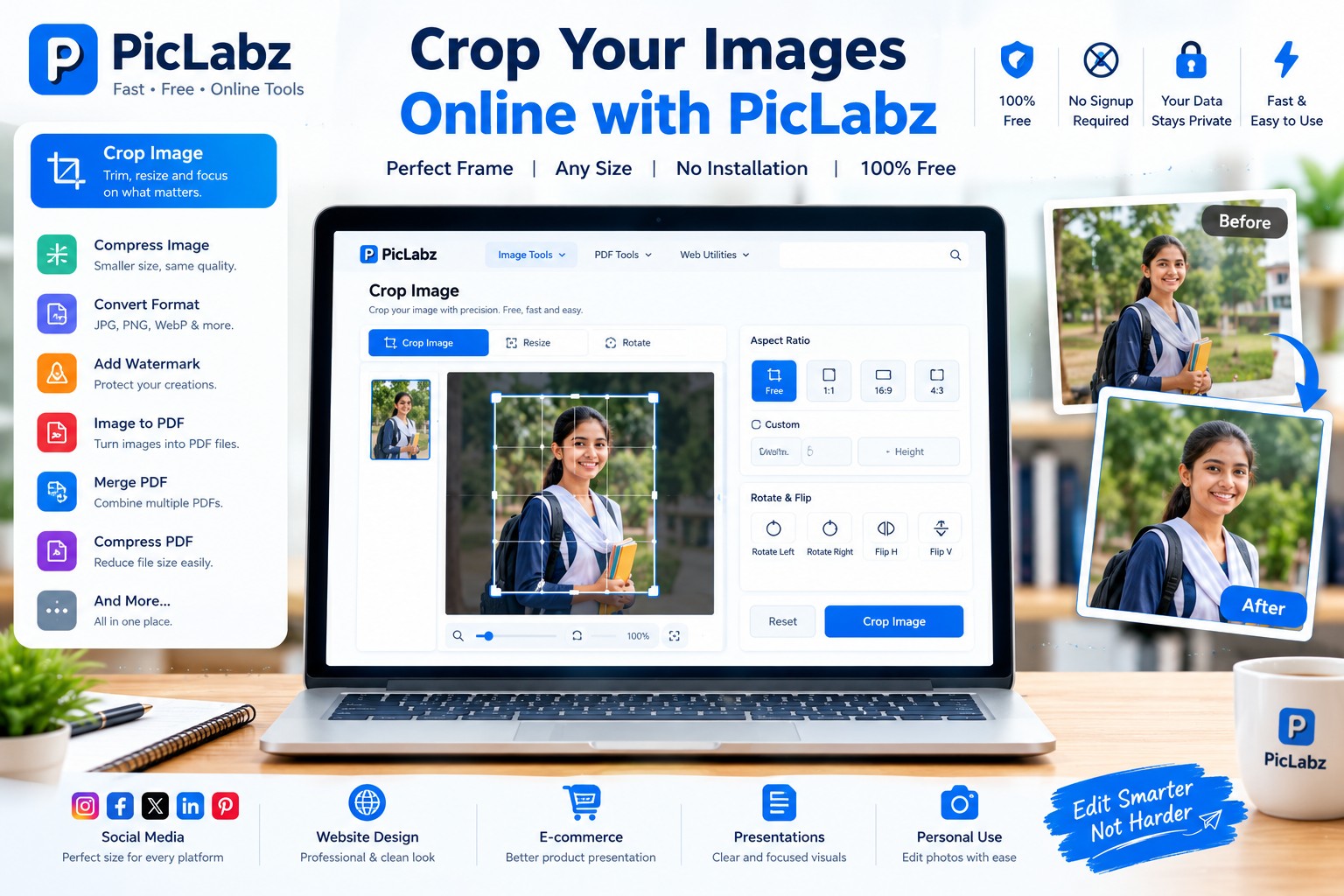
Custom & Preset Aspect Ratios: Choose standard aspect ratio presets such as 1:1, 16:9, 4:3, or set custom dimensions according to your project requirements.
Rotation and Mirror Flipping: Easily rotate images left or right, and flip them horizontally or vertically prior to cropping.
Zero Quality Degradation: Advanced algorithms preserve maximum sharpness, color balance, and clarity during output generation.
Step-by-Step Tutorial: How to Crop Your Images Using PicLabz
Cropping your photos with PicLabz takes just a few seconds. Follow this step-by-step walkthrough to get perfectly framed pictures every time:
Step 1: Access the PicLabz Image Cropper Tool
Open your web browser and navigate to the main website at
Step 2: Upload Your Image
Once you are on the tool page:
Click the blue "Select Image" button located in the upload area.
Browse your computer, tablet, or smartphone storage, select your file, and click Open.
Alternatively, you can simply drag and drop your image directly into the designated cropping zone on screen.
Step 3: Adjust the Selection Box
Once uploaded, your image will appear inside the interactive cropping canvas:
Freeform Cropping: Drag the handles on any side or corner of the crop overlay box to freely select the exact area you wish to keep.
Repositioning: Click and drag the inside of the crop frame to shift the focus area across different parts of the photo.
Step 4: Apply Aspect Ratios, Rotation, or Flipping (Optional)
On the right-hand panel, you can fine-tune your settings:
Aspect Ratio Presets: Pick popular aspect ratios such as 1:1 (Square) for profile avatars or social posts, or input custom numerical ratios (e.g., 16:9 or 4:3).
Rotation & Flip Options: Use the Rotate Left or Flip Horizontal controls if your image requires orientation correction before trimming.
Step 5: Process and Download the Cropped Image
Click the "Crop Image" button located at the bottom right.
Within milliseconds, PicLabz processes your selection.
Click the green "Download Cropped Image" button to instantly save your updated photo directly to your local download folder.
Explore Related Online Image & PDF Tools on PicLabz
Beyond image cropping, optimizing your digital assets often requires multiple workflow steps. You can combine cropping with other powerful utilities available on our platform:
Compress Your Files: If your cropped image file size is too large for web upload, reduce file size without quality loss using our
Online Image Compressor Convert File Formats: Need your cropped photo in a different format? Effortlessly switch formats using the
JPG to PNG Converter WebP Converter Manage PDF Documents: Working with scanned documents or PDF reports? Try our free suite of
PDF Tools
Best Practices for Image Cropping and Web Optimization
To ensure your graphics deliver maximum impact across digital channels, keep these industry best practices in mind:
1. Maintain Original Resolution Quality
Always start editing with the highest resolution image available. Cropping reduces pixel dimensions; starting with a low-resolution graphic may lead to pixelation when stretched across high-definition displays.
2. Follow Composition Rules
Utilize framing lines to place key focal points along grid intersections. Centering your main subject creates symmetry, while placing subject elements off-center can add dynamic visual tension.
3. Save in the Ideal File Format
PNG: Ideal for graphics containing transparent backgrounds, text overlays, or sharp vector-style art.
JPG / JPEG: Best for standard photography and complex color scenes where small file sizes are desired.
WebP: Modern web format offering superior compression efficiency without sacrificing visual clarity.
Frequently Asked Questions (FAQs)
Is PicLabz Image Cropper completely free to use?
Yes, the
Are my uploaded photos safe on PicLabz?
Absolutedly. PicLabz executes image processing locally in your client web browser. Your private photos are never uploaded or permanently stored on remote servers.
Can I crop WebP or GIF files using this tool?
Yes, PicLabz supports standard JPG, PNG, WebP, and GIF image formats seamlessly.
Conclusion
Cropping pictures online no longer requires bulky software installations or technical graphic design skills. With the