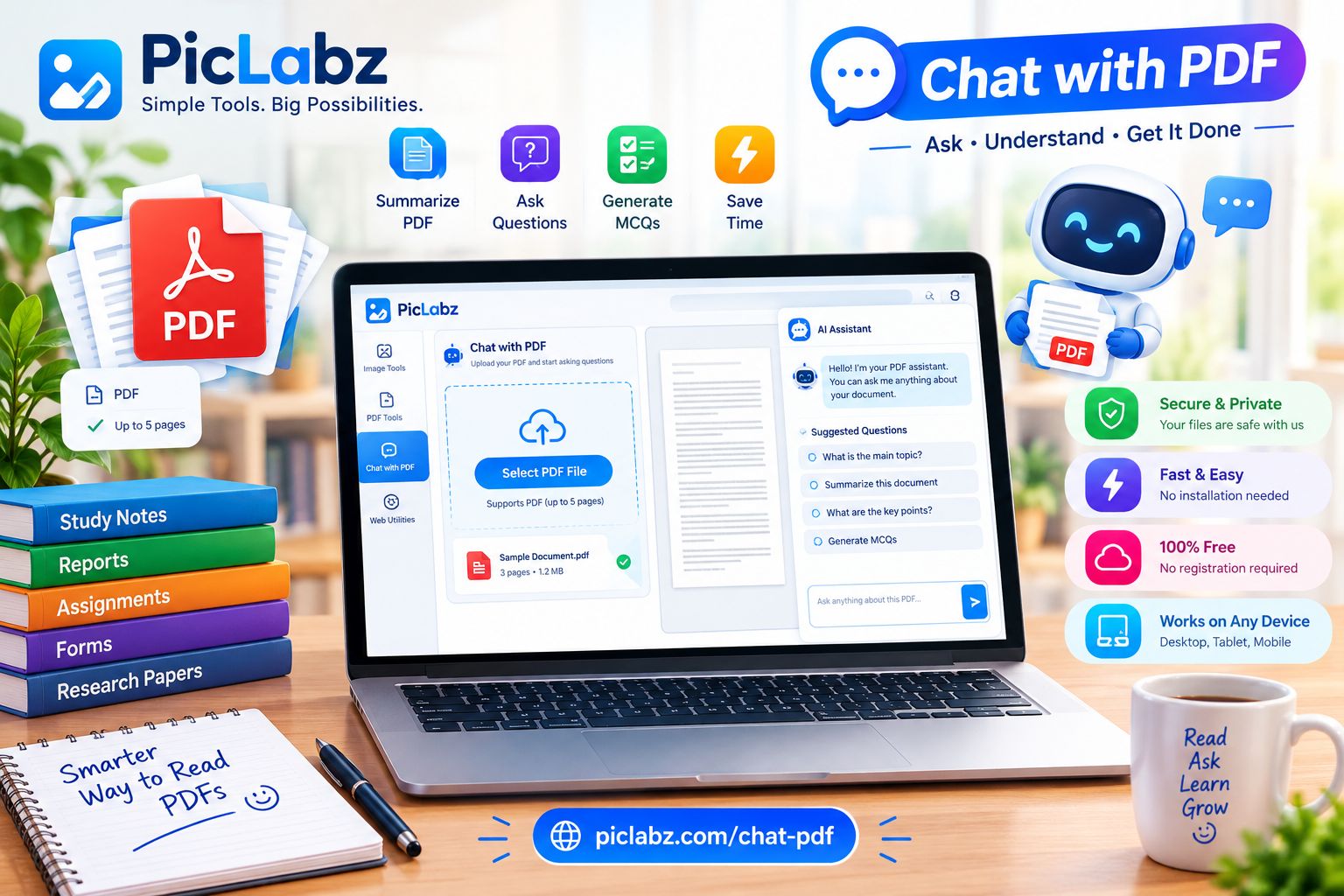
PDF files are widely used for study materials, admission forms, research papers, reports, manuals, and important documents. However, finding specific information in a PDF can take time, especially when the document contains several pages of text.
A Chat with PDF tool makes this process easier by allowing you to ask questions about a document and receive AI-generated answers. Instead of manually reading every line, you can upload a PDF, review its summary, and ask questions to find the information you need.
In this guide, you will learn how to use the "PicLabZ Chat with PDF tool" (https://piclabz.com/chat-pdf), upload a document, ask questions, generate summaries, and create multiple-choice questions (MCQs) from your PDF.
What Is Chat with PDF?
Chat with PDF is an AI-powered document assistant that helps users understand the contents of a PDF through questions and answers. It allows you to interact with a document in a conversational way instead of relying only on manual reading or keyword searches.
For example, if you have a school admission form, you can ask about the student's date of birth, name, or other details included in the document. Similarly, if you upload study notes, you can request a summary or ask questions about a particular topic.
With PicLabZ, you can upload a PDF document and use the AI assistant to explore its contents through a simple interface.
How to Use PicLabZ Chat with PDF
Using the PicLabZ Chat with PDF tool involves a few simple steps. You can follow the instructions below to get started.
Step 1: Open the Chat with PDF Tool
First, visit the "PicLabZ Chat with PDF page" (https://piclabz.com/chat-pdf) using your web browser.
You will see a document upload area with a button labeled Select PDF File. The page explains that the tool supports PDF documents of up to five pages.
You do not need to search through a complicated interface. Start by preparing the PDF you want to analyze.
Step 2: Upload Your PDF File
Click the Select PDF File button and choose a PDF document from your computer or device.
You can also drag and drop a PDF into the designated upload area if you are using a compatible desktop browser.
Before uploading, make sure your document is in PDF format and follows the tool's five-page limit. If your document contains more than five pages, prepare a shorter version containing the relevant pages.
After selecting the file, allow the tool to load and process the document.
Step 3: Review the PDF Document
Once the document has been loaded, the PDF viewer displays its contents. This allows you to look at the original document while using the AI assistant.
For example, you might upload an admission form, a school notice, a report, or a set of study notes. You can review the document visually and then ask the AI assistant questions about the information it contains.
Keeping the original document visible is helpful because you can compare the AI-generated answers with the information shown in the PDF.
Step 4: Read the Automatic Summary
The PicLabZ Chat with PDF interface includes a summary section that provides an overview of the uploaded document.
A summary helps you understand the main subject of a document without reading every line first. Depending on the content, it may describe the document's purpose, important details, and the type of information it contains.
For example, when you upload a school admission form, the summary may explain that the document contains student information, parents' details, addresses, and other admission-related information.
Read the summary to understand the document before asking more specific questions.
Step 5: Ask Questions About Your PDF
This is one of the most useful features of a chat with PDF AI tool.
On the right side of the interface, you will find the AI Assistant panel. At the bottom of this panel, there is a text box labeled Ask anything about this PDF...
Type your question into the box and click the send button.
For example, if you upload a student admission form, you can ask:
- What is the student's date of birth?
- What is the student's name?
- What information is included in this form?
- What is the name of the school?
- Summarize the important details in this document.
The AI assistant will generate a response based on the available information in the uploaded PDF.
For better results, ask clear and specific questions instead of typing a vague request. If you need a particular date, name, number, or section, mention it directly in your question.
Step 6: Use Suggested Questions
If you are unsure what to ask, look at the suggested questions displayed above the chat input box.
These suggestions can help you get started without having to write every question yourself. For example, you may see prompts related to the student's name or date of birth when the uploaded document is an admission form.
Click a relevant suggestion to ask the corresponding question. You can also type your own question whenever you need information that is not covered by the suggestions.
This feature is particularly useful for students, teachers, and anyone who wants to find specific information in a document quickly.
Step 7: Generate Summaries and Multiple-Choice Questions
Besides answering questions, the PicLabZ Chat with PDF page describes features for generating summaries and multiple-choice questions (MCQs).
These features can be useful when working with educational materials.
For example, students can upload a short set of notes and request information that helps them revise the main topics. Teachers can explore the content of a document and use AI-generated MCQs as a starting point for preparing practice questions.
Always review AI-generated questions and answers before using them in an examination, assignment, or official educational material.
Step 8: Copy Useful Answers
When the AI assistant provides a response, you can use the available Copy button to copy the answer.
This is helpful when you want to save a summary, keep important details in your notes, or reuse information while preparing a study guide.
Before using copied content, check it against the original PDF. This is especially important when dealing with names, dates, figures, admission information, or other details that must be correct.
What Can You Do With a Chat with PDF AI Tool?
A chat with PDF online tool can help with several everyday tasks.
1. Summarize Study Materials
Students can use PDF summaries to review lecture notes, short study documents, and educational materials. A summary can make it easier to identify the main topics before studying in detail.
2. Find Information in Forms
Admission forms and other documents may contain names, dates, addresses, and additional details. Asking specific questions can help you locate information without manually examining every field.
3. Understand Reports and Documents
If you are reviewing a report or informational document, you can ask the AI assistant to explain its main points or summarize a section in simpler language.
4. Prepare Practice Questions
When working with educational PDFs, AI-generated multiple-choice questions can provide a starting point for revision and self-assessment. Check the questions and answers against the original material before relying on them.
5. Save Time When Reviewing Short PDFs
Instead of reading an entire short document before knowing what it contains, you can begin with the automatic summary and then ask questions about the details that matter to you.
Tips for Getting Better Results From Chat with PDF
Follow these tips to make your PDF question-and-answer experience more useful.
Ask specific questions. Instead of asking, "Tell me everything," try asking, "What are the main points of this document?" or "What is the date mentioned in the form?"
Use a clear PDF file. A document with readable text is generally easier for an AI assistant to analyze than a poor-quality scan or an image containing unclear text.
Follow the page limit. PicLabZ's Chat with PDF page specifies a maximum of five pages. Select a shorter document or prepare only the relevant pages when necessary.
Verify important information. AI-generated answers can contain errors or misunderstand details. Check names, dates, numbers, and other important facts against the original document.
Avoid sharing sensitive information unnecessarily. Admission forms and official documents may contain personal details. Before uploading a document to any online AI tool, consider whether you have permission to share its contents and review the service's privacy information.
Frequently Asked Questions
What is the best way to chat with a PDF online?
Open a chat with PDF tool, upload your document, review the summary, and ask specific questions in the chat box. Check the generated answers against the original document for accuracy.
How do I ask questions about a PDF using AI?
Upload your PDF to an AI PDF assistant and type a question related to its contents. For example, you can ask for a summary, a specific date, the main points, or an explanation of a section.
Can I summarize a PDF with AI?
Yes. AI PDF tools can generate summaries of supported documents. PicLabZ's Chat with PDF interface includes a summary section that helps you understand the main contents of an uploaded PDF.
Can I generate MCQs from a PDF?
PicLabZ describes its Chat with PDF tool as supporting MCQ generation. This can help students and teachers prepare practice material from a supported document. Review the generated questions and answers before using them.
What is the page limit for PicLabZ Chat with PDF?
The Chat with PDF upload page specifies a maximum of five pages. If your document is longer, prepare a shorter PDF containing the pages you want to analyze.
Can AI always provide accurate answers from a PDF?
No. AI-generated responses may occasionally misinterpret information or produce incorrect details. Always compare important answers with the original document, particularly when accuracy matters.
Who can benefit from a Chat with PDF tool?
Students, teachers, researchers, office workers, and other people who need to review short PDF documents can benefit from asking questions and generating summaries instead of searching through the entire document manually.
Conclusion
A Chat with PDF tool can make it easier to explore documents, find specific details, review summaries, and prepare practice questions. The process is straightforward: upload your PDF, review the document summary, ask a clear question, and verify the answer against the original file.
If you want to try these features, visit the "PicLabZ Chat with PDF tool" (https://piclabz.com/chat-pdf) and follow the steps in this guide to get started.
Use clear questions, work within the five-page limit, and double-check important information to get more value from your AI-assisted PDF reading experience.